
Every ITSM carries the identity and rules of those who use it. The Settings module of the Nyverra ITSM Portal is where administrators shape the portal's appearance, behavior, and policies — without touching code.
This guide walks through the configuration areas, explains the impact of each, and highlights the adjustments that most affect day-to-day operations.
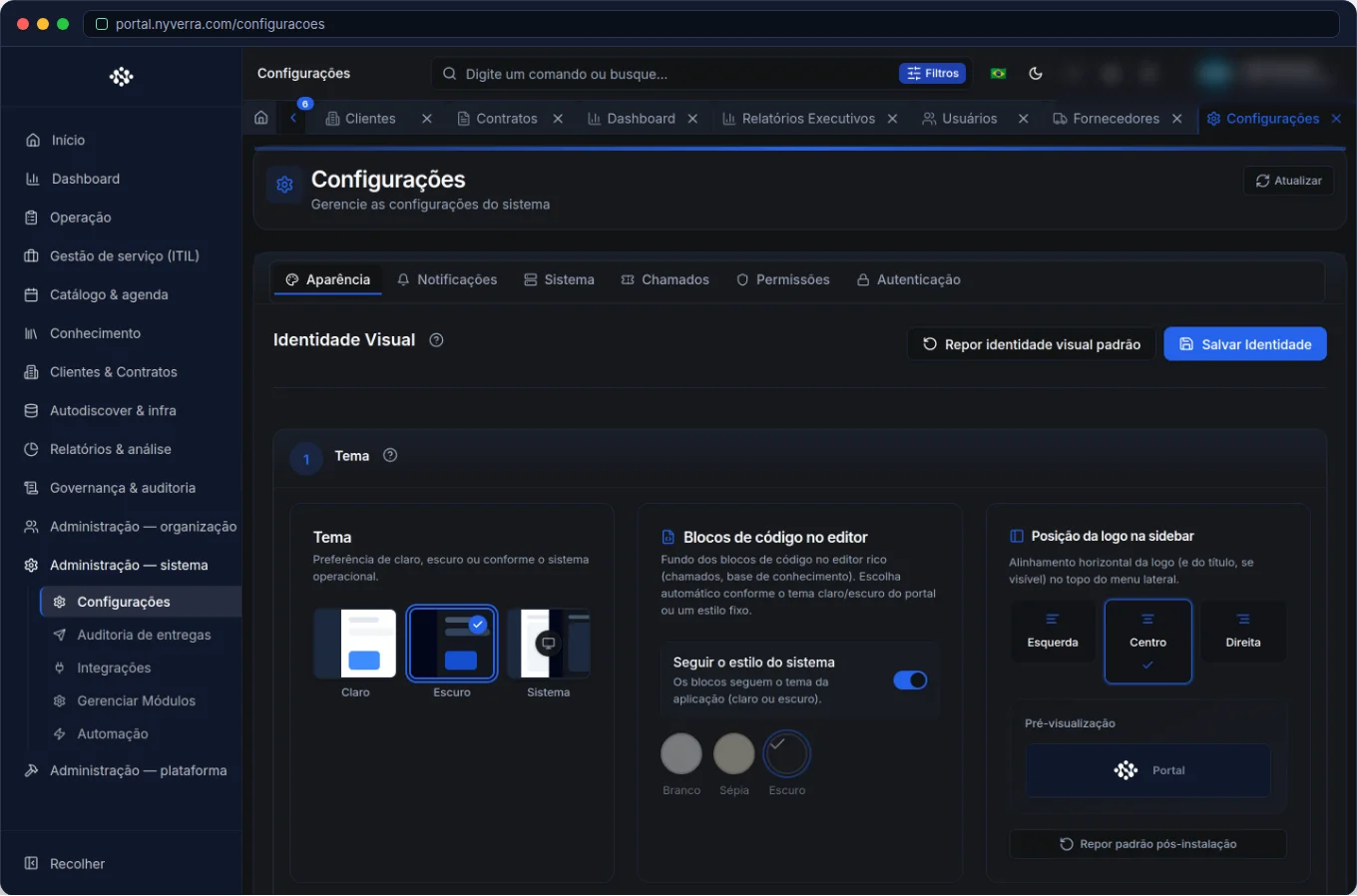 Settings module interface in the Nyverra ITSM Portal.
Overview of areas
| Area | What you configure |
|---|---|
| Appearance | Theme, logo and colors (branding) |
| System | Default language, time zone, date/time format, base URL |
| Notifications | SMTP, email templates, Slack |
| Authentication | 2FA policy and shortcuts for LDAP/SAML |
| Tickets | SLA, calendar, holidays, and default view per user/group |
| Search | Elasticsearch (reindexing, when enabled) |
Branding: identity in the portal
Logo, colors, and institutional texts make the portal look like yours — not generic. More than aesthetics, branding reinforces trust: the customer recognizes the company on every screen, email, and in the self-service portal.
System: time zone and formats that prevent errors
It seems like a detail, but time zone and date/time format are a classic source of confusion — especially in SLA and reports. Define the operation's time zone and formats once, and everyone sees the same reference. After changing, users may need to reload the page to see the new format.
SLA, calendar, and holidays
This is where SLA comes to life. The Portal calculates deadlines using the configured business calendar and holidays — that's why a ticket opened on Friday night does not expire on Sunday. Rules are created by ticket type and priority. A wrong calendar produces wrong SLA; review them together.
Default view per user and group
A setting that changes the team's routine: under Tickets → Default view, the administrator defines, per user or operator group, which filters appear when opening the list. Group members inherit the configuration — and when it is set by the administrator, the user cannot remove it on their own. Result: each team opens directly in the queue they handle.
Notifications and authentication
- SMTP and templates: configure the email server and notification templates; test before enabling in bulk.
- Slack: channel notifications, integrating operations with chat.
- 2FA: the policy can require a second factor — starting with administrators.
- SSO/LDAP/SAML: shortcuts lead to the Integrations area, where credentials are stored.
Who uses it
| Profile | Use |
|---|---|
| Administrator | Main user of the module |
| Technician | Generally without access to Settings |
How to use: common tasks
Adjust SLA
- Settings → Tickets → SLA.
- Define business calendar and holidays.
- Create rules per ticket type and priority.
Set the team's default view
- Settings → Tickets → Default view.
- Choose user or operator group.
- Define the filters — group members inherit.
Enable a module in the menu
- Open Manage modules (Administration menu).
- Enable/disable — the effect appears in the side menu.
Business rules
| Rule | Explanation |
|---|---|
| Global effect | Changes here affect all users of the instance (tenant). |
| LDAP/SAML | Credentials and tests are in Integrations; do not duplicate secrets in chat. |
| Dates in the UI | After changing time zone/format, users may need to refresh the page. |
| 2FA | The policy can require administrators first. |
Best practices
- Configure SMTP and test sending before enabling bulk notifications.
- Review calendar and holidays together with SLA rules.
- Apply branding before announcing the portal to customers.
- Document configuration changes — they are global and impact everyone.
- Combine default view with operator groups to speed up triage.
Common mistakes
| Situation | What to do |
|---|---|
| “Weird” SLA | Check calendar, holidays, and the type/priority rule. |
| Email doesn't arrive | Test SMTP and check the delivery audit. |
| Dates with wrong time | Review the system time zone. |
Frequently asked questions
Do settings apply per customer?
Generally per instance (tenant); organization-specific parameters are the exception.
Can I change the logo?
Yes, under Appearance/Branding.
Where do I configure SLA?
Under Settings → Tickets (SLA, calendar, holidays).
Automate via API
Part of the settings is exposed via API (/api/configuracoes, including /sistema for time zone and formats). Reference at developer.nyverra.com.
Use cases: configuration that prevents problems
1. SLA coming out wrong. The ticket “expires” on the weekend because the business calendar was not configured. Adjusting holidays and business hours aligns SLA with business reality — and avoids fair complaints.
2. Portal “without identity”. Before opening to customers, apply branding (logo, colors, texts). The portal stops looking “factory-default” and reinforces trust.
3. Team opening on the wrong screen. The default view per group makes each team open directly in their queue, reducing triage time. It is one of the settings with the greatest immediate impact on productivity.
Checklist before “flipping the switch”
| Item | Why |
|---|---|
| Time zone and date/time format | SLA and report consistency |
| Calendar and holidays | Correct deadline calculation |
| SMTP tested | Notifications arrive |
| 2FA policy | Security of privileged profiles |
| Branding | Identity and trust |
| Default views per group | Triage productivity |
The care with global changes
Everything here affects all users of the instance. Before changing anything sensitive (SLA, calendar, authentication), communicate and, when possible, test in staging. Document configuration changes: they are the most common causes of “weird” behaviors that no one remembers enabling. Well-governed configuration is a handful of adjustments that yield months of smooth operation.
Checklist before publishing the instance
- Time zone and date/time format checked.
- Business calendar and holidays defined.
- SLA rules per type/priority created.
- SMTP configured and tested.
- 2FA policy applied.
- Branding (logo, colors, texts) applied.
- Default views per group defined.
Additional frequently asked questions
Do settings apply per customer?
Generally per instance; organization-specific parameters are the exception.
Do I need to restart something after changing the time zone?
Users may need to reload the page to see the new format.
Who can change Settings?
Only administrators; changes affect everyone.
Conclusion
Settings and branding make the Nyverra ITSM Portal aligned with your organization's identity and rules. Done carefully — calendar, SLA, notifications, and 2FA — they are the difference between a “factory-default” portal and a portal that works your way.
Keep reading
Read also

StorCLI - Complete Cheat Sheet
StorCLI is the official and modern tool for managing Broadcom/LSI RAID controllers. This guide covers essential commands, syntax and use cases.
12 min de leitura Tutoriais
Business Services in Nyverra Portal: Translating IT into Business
The business doesn't feel a server go down — it feels email stop. The Business Services (Service Mapping) module of Nyverra ITSM Portal connects services like Email, ERP or PACS to CMDB assets, revealing the real impact of each failure.
5 min de leitura Segurança
RPO vs RTO: How to Define Before Buying Backup (and Why Most Companies Get It Wrong)
Most companies buy backup asking the wrong question: "how much does it cost?". The right question is: how much data can I lose (RPO) and how long can I be down (RTO). Discover how to define these numbers per system and avoid purchasing protection based on price, not on real need.
9 min de leitura
Comments
No comments yet
Be the first to share your thoughts on this article.


Leave a comment