

There is an exact point where agility meets risk: the decision to authorize. Releasing everything without control is reckless; requesting approval for everything paralyzes the operation. The Approvals module of the Nyverra ITSM Portal places control where it makes sense and gives the approver a single queue to decide.
In this guide, you will understand what generates an approval, how the queue and steps work, the prohibited self-approval rule, client approval in changes, and how to prevent approvals from becoming a bottleneck.
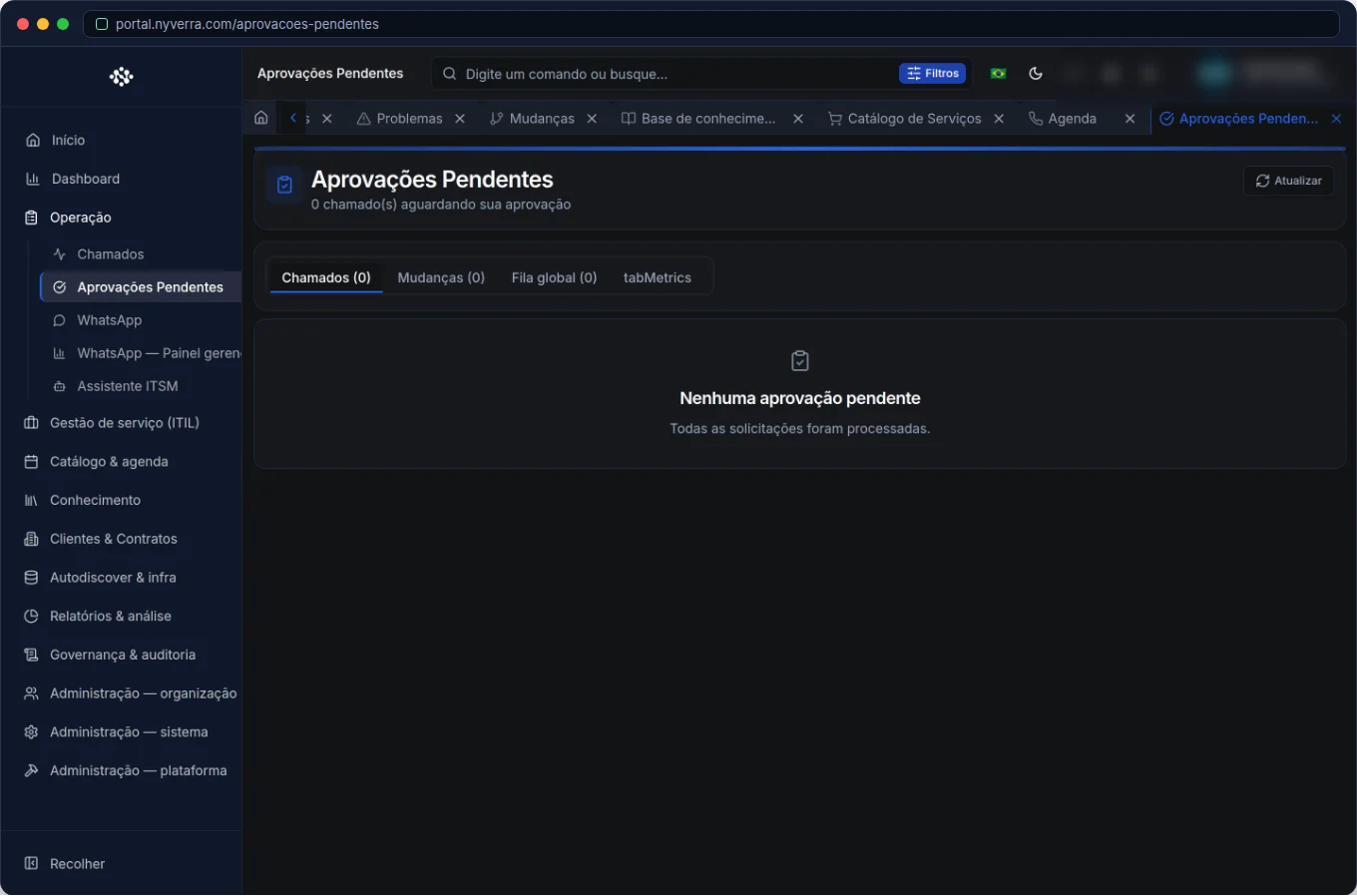 Module interface in the Nyverra ITSM Portal.
What generates an approval
Approvals are not universal — they arise from configuration and process:
- Tickets: if the ticket type is marked with "Requires approval", the flow pauses until the approver decides.
- Changes (RFC): planned changes go through the approval/CAB flow before implementation.
- Service requests: catalog items may require authorization before fulfillment.
In all cases, while there is a pending approval, the flow does not advance — this is the guarantee that the control is not decorative.
The approval queue
The module is the central "what awaits my decision". Two important details:
- You only see what is yours: only the approvals where you are the approver of the current step appear. It is not a dump of everything.
- Counters (badges): the bell and the menu sum the ticket and change queues, so the approver notices the pending without opening the screen.
The screen organizes by tabs (Tickets and Changes), and each item shows title, requester, deadline, and summary. If context is missing, the item detail is accessible — including through the object's own screen (for example, the change detail).
Multiple steps
Approvals can have several levels: each step releases the next. This models real scenarios — for example, the technical manager approves and then finance confirms the cost. Practical consequence: "I approved and nothing happened" usually means that there is another pending step, not that the approval failed.
The prohibited self-approval rule
A principle of segregation of duties, reinforced in the Portal: whoever creates does not approve. The creator of a ticket or a change cannot approve their own item. Besides being required by good internal control practices, this prevents the approval from becoming an empty formality. That is why, when submitting an RFC, it does not appear in your own queue.
Client approval
In changes with an identified client, the client representative (CUSTOMER profile) can be the approver — deciding in the approvals hub or in the change detail. It is the model that gives the client a voice over changes that affect them, without turning internal service into ping-pong.
Who uses it
| Profile | Use |
|---|---|
| Designated approver | Approve or reject with comment |
| Requester | Track status in the item detail |
| Administrator | Configure which types/services require approval and who approves |
How to use: step by step
- Open Pending Approvals.
- Choose the tab (Tickets or Changes).
- Read each item: title, requester, deadline, and summary.
- If needed, open the detail to understand impact/rollback.
- Choose Approve or Reject and provide a comment when mandatory.
- The requester and operators are notified according to the configured notifications.
Business rules
| Rule | Explanation |
|---|---|
| Type with approval | A ticket only enters approval if the type has "Requires approval". |
| Personal queue | Only the approvals where you are the approver of the current step appear. |
| Rejection | Returns the flow to the requester/operator for correction. |
| Multiple steps | Each level releases the next. |
| Self-approval | The creator does not approve their own ticket/change. |
Best practices
- Define approvers by criticality (cost, privileged access, impact), not by availability.
- Monitor old pendencies — a forgotten approval is a stalled SLA.
- Keep steps to the minimum necessary; each extra step adds latency.
- Delegate approval during vacations (delegation by period) so as not to create a bottleneck.
Common mistakes
| Situation | What to do |
|---|---|
| "I approved and it didn't move" | Check if there is another pending step or a subsequent action by the operator. |
| Approval stuck for days | Review the approver list and configure delegation. |
| I don't see the approval | Confirm that you are the approver of the current step and that the module/permission are active. |
Frequently asked questions
Can I approve my own ticket?
No — self-approval is blocked.
Do releases also have approval?
Not today; approve each RFC in the Changes module. The release is the package record.
How to reduce approval time?
Fewer steps, the right approvers, and configured delegation.
Automate via API
Ticket approvals are exposed via API (/api/ticket-approvals/pendentes, /pendentes/todos, counters, and decision per ticket). Reference at developer.nyverra.com.
Use case scenarios: approval as proportional control
1. Privileged access. A request for access to a critical system requires the manager's approval. The flow pauses until the decision; once approved, provisioning continues. The authorization remains recorded — exactly what audit and LGPD expect.
2. Relevant cost. A purchase or hiring above a threshold goes through financial approval. The role ensures that only those with authority decide; blocked self-approval avoids the "I authorize myself".
3. Change with client impact. A change that affects the client requires the representative's approval (CUSTOMER). This gives the client a voice over what changes in their operation.
4. Approver's vacation. Instead of blocking, temporary delegation is granted to another approver, with an end date. The flow continues; the control remains.
Approval KPIs
| Indicator | What it reveals |
|---|---|
| Average time to decision | Governance bottleneck |
| Pending approvals > 24h | Risk of stalled SLA |
| Steps per flow | Unnecessary complexity |
| Rejection rate and reason | Quality of requests |
| Active delegations | Absence coverage |
The goal is not to have zero rejections, but rather quick and traceable decisions. A flow that blocks does not protect: it delays.
Governance without bureaucracy
The balance is in approving what has real impact — and not everything. Automation rules can pre-classify requests and already direct them to the right approvers; Traceability and Audit record each decision; the counters show what is pending. Thus, governance relies on data and not on "institutional guesswork".
Approval configuration checklist
- List what really requires approval (risk/cost/impact).
- Configure which ticket types and catalog items have approval.
- Define approvers per step and per criticality.
- Keep steps to the minimum necessary.
- Enable temporary delegation to cover absences.
- Monitor old pendencies with the counters.
Additional frequently asked questions
Can approvals have more than one approver in the same step?
It depends on the flow configuration; what matters is that the step releases the next level only when decided.
How does the approver know there is something pending?
Through the bell/badge and the pending approvals queue.
Does rejecting close the request?
Usually it returns to the requester/operator for correction, with the reason recorded.
Conclusion
Well-designed approvals provide governance without paralyzing. With a personal queue, multiple steps, prohibited self-approval, and client approval in changes, the Nyverra ITSM Portal balances control and speed — and each decision remains recorded for audit.
Keep reading
Read also

StorCLI - Complete Cheat Sheet
StorCLI is the official and modern tool for managing Broadcom/LSI RAID controllers. This guide covers essential commands, syntax and use cases.
12 min de leitura Tutoriais
Business Services in Nyverra Portal: Translating IT into Business
The business doesn't feel a server go down — it feels email stop. The Business Services (Service Mapping) module of Nyverra ITSM Portal connects services like Email, ERP or PACS to CMDB assets, revealing the real impact of each failure.
5 min de leitura Segurança
RPO vs RTO: How to Define Before Buying Backup (and Why Most Companies Get It Wrong)
Most companies buy backup asking the wrong question: "how much does it cost?". The right question is: how much data can I lose (RPO) and how long can I be down (RTO). Discover how to define these numbers per system and avoid purchasing protection based on price, not on real need.
9 min de leitura
Comments
No comments yet
Be the first to share your thoughts on this article.


Leave a comment