

Every operation has a truth that nobody wants to face: what is not measured does not improve. A service desk without indicators lives on impression — “I think we are fine”. The Dashboard of the Nyverra ITSM Portal swaps impression for real-time visible data.
This guide shows what the Dashboard delivers, which indicators matter day-to-day, and how to use it to take action — including on big screens, with kiosk mode.
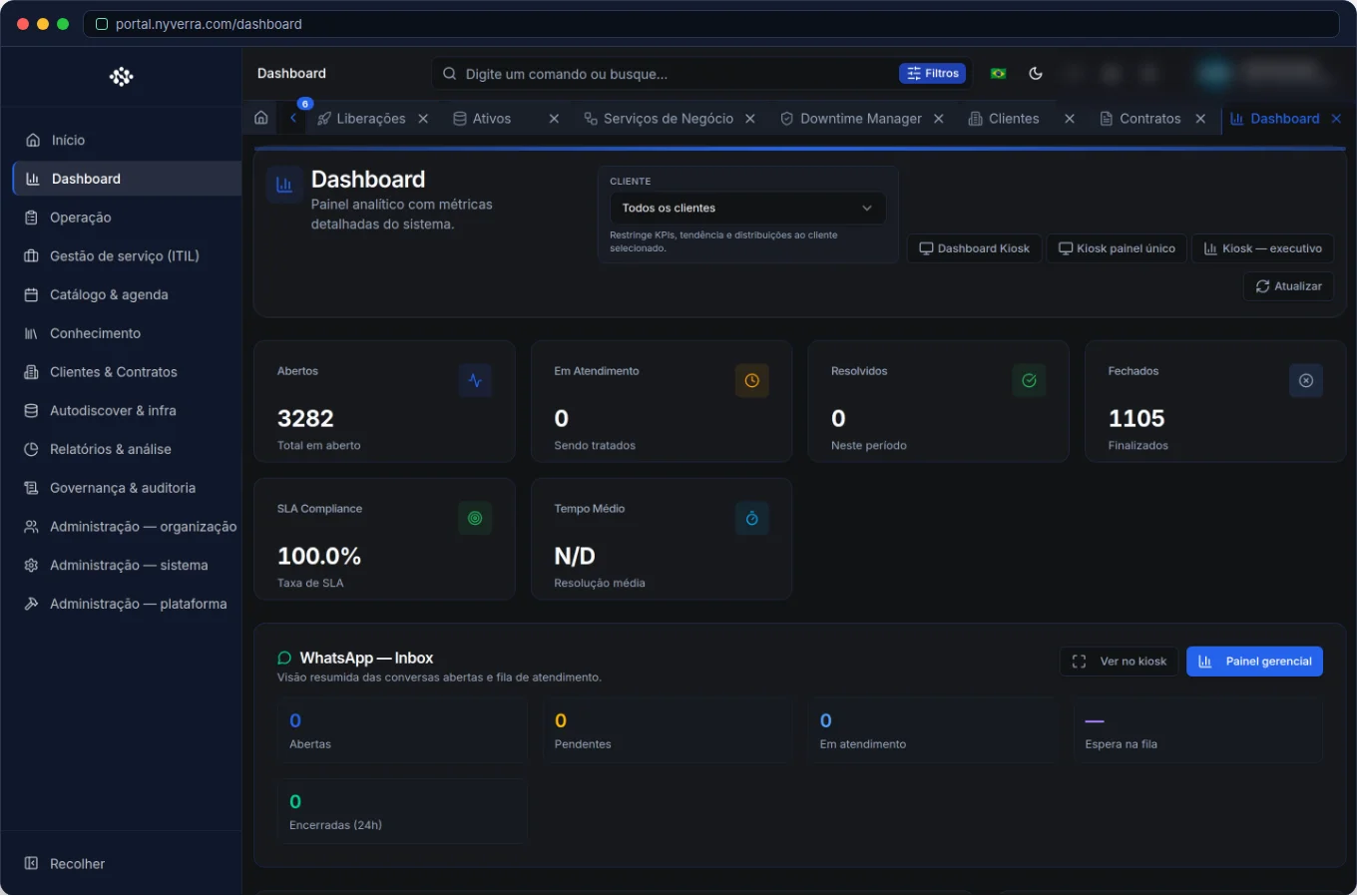 Module interface on the Nyverra ITSM Portal.
What the Dashboard Shows
It is the operational and managerial view of service delivery. The main blocks:
| Block | What it reveals |
|---|---|
| Service KPIs | Opened, in progress, resolved — the “now” of the queue |
| ITIL KPIs | Incident/problem/change indicators |
| Trend | How volume evolves over time |
| Distributions | By status, category, priority, and client |
| SLA/OLA breach | Where deadlines are being missed |
Why Each Block Matters
- Current volume: sizes the queue and the need for reinforcement in the shift.
- Trend: anticipates peaks (e.g., Monday morning, month-end closing) instead of just reacting.
- Distributions: show if volume is concentrated in a category — a clue to root cause or need for knowledge.
- SLA/OLA breaches: point to where the deadline is missed (which queue, which category) — not just “how many missed”.
Kiosk Mode: The Dashboard on the Wall
For NOC and operations rooms, the Dashboard has a kiosk mode — dedicated display on TV/monitor, without the usual navigation. It is the panel visible to the whole team and makes performance collective, not just the manager's. It can be combined with specific panels (e.g., the WhatsApp panel) on the same big screen.
Configurable Layout
The dashboard layout can be adjusted by profile, prioritizing the indicators that make sense for each role. Thus, the first row has what matters for the operation, and details remain accessible as needed.
Who Uses It
| Profile | Typical use |
|---|---|
| Manager | Monitor KPIs, trend, and breaches |
| Operations / NOC | Monitor the queue in real time (kiosk) |
| Administrator | Configure layout and visibility |
How to Use: Step by Step
- Open the Dashboard and select the period.
- Read the top KPIs (current volume).
- Compare with the trend to see if the day is above or below normal.
- Go to distributions to locate the volume concentration.
- Check SLA/OLA breaches and prioritize critical queues.
- Activate kiosk mode on the operations TV, if applicable.
Business Rules and Precautions
| Point | Explanation |
|---|---|
| Permission | Dashboard access depends on specific overview permissions. |
| Timezone and format | Follow Settings → System (timezone and date/time format). |
| Data | Reflect the database at the time of query; peaks and caching vary. |
| Kiosk | Requires an appropriate user/permission and, ideally, a dedicated session. |
Best Practices
- Start each shift with the dashboard: queue, trend, and breaches.
- Use kiosk to make performance visible to the team (not as surveillance, but focus).
- Don't memorize numbers: turn each KPI into an action (reinforcement, reprioritization, knowledge).
- Compare trend with shift capacity — an indicator without context misleads.
Common Mistakes
| Situation | What to do |
|---|---|
| Looking only at the “total open” | Combine with trend and breaches for a real decision. |
| Ignoring where SLA is missed | The value is in the distribution by queue/category, not the total. |
| Kiosk without context | Choose indicators that the shift can act on. |
Frequently Asked Questions
Does the Dashboard replace reports?
No. The dashboard is the “now”; reports are the history and accountability.
Can I display it on the room TV?
Yes, with kiosk mode.
Are the numbers real-time?
They reflect the database at the time of query.
Automate via API
The dashboard data is exposed via API (/api/dashboard, /trend, /kpis-itil, /sla-ola-breach-summary, /kiosk, /layout). Reference at developer.nyverra.com.
Use Cases: The Dashboard in Daily Routine
1. Shift opening. The supervisor opens the Dashboard, checks the queue, the day's trend, and SLA breaches. In one minute, they know where to allocate effort and which queues are at risk.
2. Operations room (NOC). Kiosk mode displays the indicators on a big screen. Performance stops being a meeting topic and becomes visible all the time — which changes behavior and speeds up corrections.
3. Management meeting. KPIs and trend anchor the conversation in data: volume, SLA compliance, and concentration by category guide capacity and prioritization decisions.
KPIs: Focus on What Generates Action
| Indicator | Why look at it |
|---|---|
| Open / in progress | Size the queue |
| Trend | Anticipate peaks |
| SLA/OLA breaches | Where deadlines are missed |
| Distribution by category | Demand concentration |
| Average resolution time | Team efficiency |
Avoid Vanity Metrics
“Total resolved tickets” alone can be misleading: high volume may mean low quality or insufficient knowledge. The dashboard is a starting point, not an end — each number should lead to an action: reinforce a shift, reprioritize a queue, create a KB article, or adjust a process. An indicator that doesn't change behavior is decoration.
Dashboard Usage Checklist
- Set the default period by profile.
- Configure the layout with indicators that generate action.
- Use the trend to anticipate peaks.
- Check SLA/OLA breaches by queue.
- Activate kiosk in the operations room.
- Review the indicators periodically.
Additional Frequently Asked Questions
Which indicator to prioritize?
Those that lead to action on the shift: queue, trend, and SLA breaches.
Can I display multiple panels on the big screen?
Yes, by combining kiosk and specific panels (e.g., WhatsApp).
Do the data change in real time?
They reflect the database at the time of query; the dashboard is the “now” view.
Conclusion
The Dashboard provides real-time visibility and turns service data into decisions. With KPIs, trend, distributions, and SLA breaches at hand — and a kiosk for the big screen — the Nyverra ITSM Portal makes the operation see itself and improve methodically.
Keep reading
Read also

StorCLI - Complete Cheat Sheet
StorCLI is the official and modern tool for managing Broadcom/LSI RAID controllers. This guide covers essential commands, syntax and use cases.
12 min de leitura Tutoriais
Business Services in Nyverra Portal: Translating IT into Business
The business doesn't feel a server go down — it feels email stop. The Business Services (Service Mapping) module of Nyverra ITSM Portal connects services like Email, ERP or PACS to CMDB assets, revealing the real impact of each failure.
5 min de leitura Segurança
RPO vs RTO: How to Define Before Buying Backup (and Why Most Companies Get It Wrong)
Most companies buy backup asking the wrong question: "how much does it cost?". The right question is: how much data can I lose (RPO) and how long can I be down (RTO). Discover how to define these numbers per system and avoid purchasing protection based on price, not on real need.
9 min de leitura
Comments
No comments yet
Be the first to share your thoughts on this article.


Leave a comment