

There is a paradox in monitoring: the better it is, the more noise it makes during scheduled maintenance. You intentionally take down a service at 10 p.m. and at 10:01 p.m., dozens of alerts arrive as if the data center were on fire. The Downtime Manager in Nyverra ITSM Portal exists to silence exactly that noise.
This guide explains what the module does, how it integrates with change management, and how to operate maintenance windows without masking real failures.
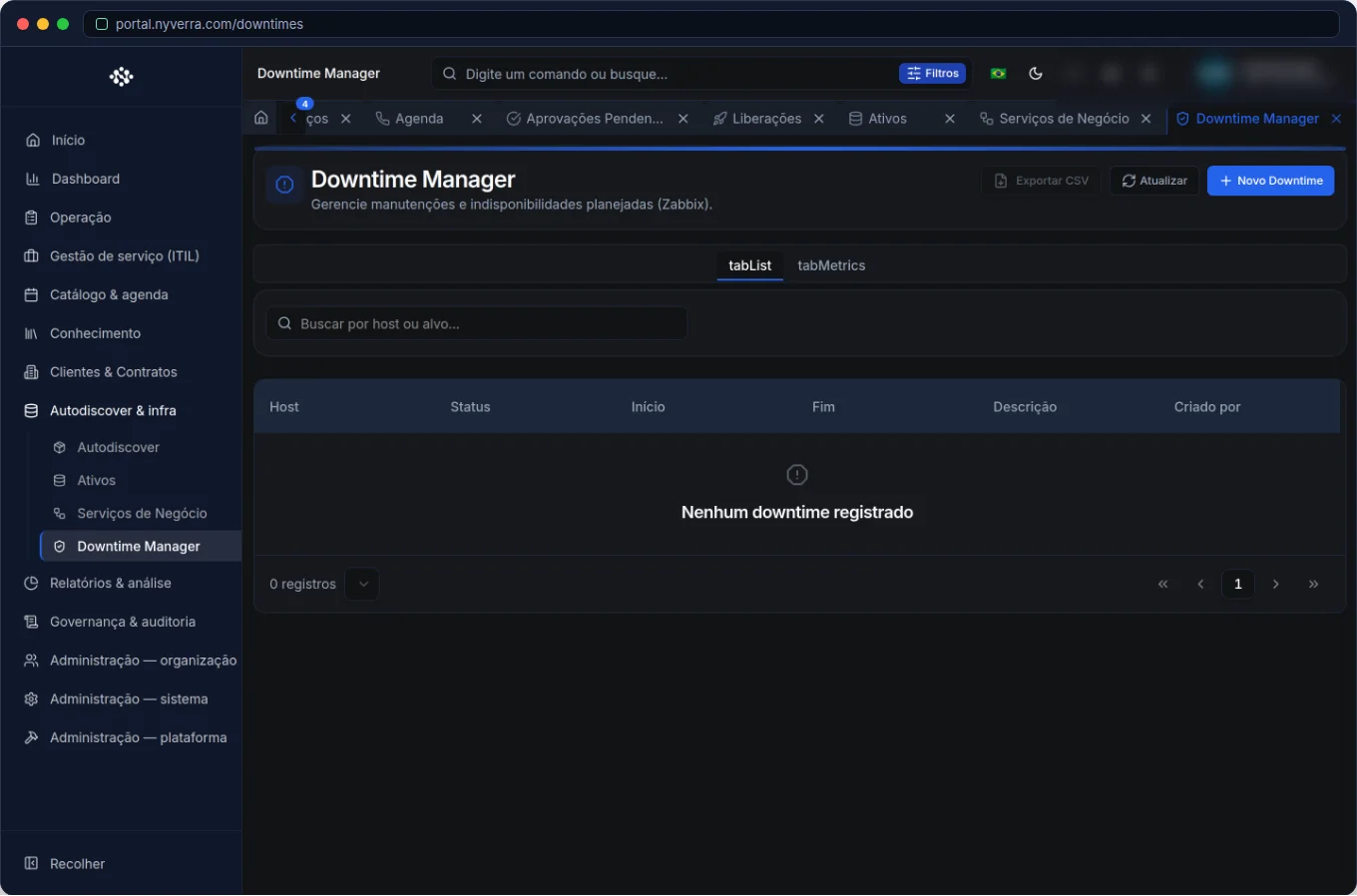 Module interface in Nyverra ITSM Portal.
What is a downtime window
A downtime window (or maintenance window) is a declared period during which a service or asset will be unavailable in a planned manner. During the window, monitoring is instructed to suppress alerts from the defined scope — avoiding false incidents, unnecessary tickets, and alert fatigue in the NOC.
Why this matters
- Reduces noise: the team is not interrupted by expected alerts.
- Avoids ghost incidents: tickets automatically opened for something planned consume SLA and attention.
- Maintains trust in monitoring: an alert that “always fires during maintenance” loses credibility.
- Provides traceability: it is recorded what was under maintenance, when, and why.
Who uses it
| Profile | Typical use |
|---|---|
| Infra / NOC | Schedule and track maintenance windows |
| Change manager | Link downtime to the corresponding change |
| Administrator | Configure monitoring integration (Zabbix) |
Module features
Maintenance windows
Creation of windows with start and end, scope and reason. It is the core of the module: declaring “this service/asset is under maintenance from X to Y”.
Alert suppression
While the window is active, alerts from the selected hosts/items are suppressed in monitoring — integrating with Zabbix.
Host and item lookup
To build the scope without memorizing IDs, the module provides host lookup and the items of each host, making it easier to select exactly what goes into the window.
Metrics and cancellation
There are downtime metrics and the possibility to cancel a window — useful when maintenance is postponed or completed ahead of schedule.
How to use: step by step
- Plan the maintenance (ideally together with a change).
- Create the downtime by providing the window (dates/times) and reason.
- Select the affected hosts/items via lookup.
- Link to the corresponding change, for traceability.
- At the end, close (or cancel) the window and confirm that monitoring has returned to normal.
Business rules
| Rule | Explanation |
|---|---|
| Local dates | Windows use local dates/times (no offset) — follow the system's date contract. |
| Precise scope | Suppress only what is under maintenance; excessive scope hides real failures. |
| Link to change | Recommended, so that suppression does not become an unexplained “hole”. |
| Cancellation | If maintenance does not occur, cancel the window to restore alerts. |
Best practices
- Always link downtime ↔ change: the window now has a recorded justification.
- Use short and well-defined windows — do not leave suppression “open” for hours beyond what is necessary.
- Review, after the window, whether any real alert was covered; adjust the scope if needed.
- Notify stakeholders before the window — communication avoids “precautionary” tickets.
Common mistakes
| Situation | What to do |
|---|---|
| Forgetting to close the window | Alerts remain suppressed beyond what is necessary. Schedule the closure. |
| Overly broad scope | It can hide failure of another service. Select only what is under maintenance. |
| Suppression without link | It remains unjustified; tie it to a change. |
Frequently asked questions
Does downtime replace change?
No. Change is the planned alteration; downtime is the alert suppression window associated with it.
Does the window affect ticket SLA?
Downtime acts on monitoring; ticket SLA rules are handled in the Tickets/Configurations module.
How do I select the right hosts?
Use host and item lookup to assemble the exact scope.
Automate via API
The module is exposed via API (/api/downtimes, /downtimes/{id}/cancelar, /downtimes/metrics, /downtimes/lookup/hosts). Reference at developer.nyverra.com.
Use cases: when downtime avoids chaos
1. Overnight ERP update. The change takes down the ERP from 11 p.m. to 1 a.m. Without downtime, monitoring fires dozens of alerts and opens tickets. With the window declared and linked to the change, the NOC remains silent and focused.
2. Internet link replacement. Carrier migration requires brief unavailability. The window prevents the team from being woken up by a false positive.
3. Storage maintenance. The scope is selected by host/item, suppressing only what is necessary — and not the entire data center.
Downtime KPIs
| Indicator | What it reveals |
|---|---|
| Downtimes linked to changes | Traceability of suppressions |
| Windows that exceeded their schedule | Planning accuracy |
| Unclosed suppressions | Risk of masking failures |
| False positives during window | Scope effectiveness |
Integration: the controlled maintenance tripod
The Downtime Manager only reaches its full potential when working together: Change (the planned alteration), Monitoring/Zabbix (which respects the window), and CMDB (which says what is under maintenance). This tripod avoids both extremes: false alert from planned maintenance and real failure hidden by an overly broad suppression. The golden rule is precise scope + timely closure.
Downtime Manager checklist
- Link each downtime to a change.
- Select the exact scope (hosts/items).
- Set realistic start and end.
- Notify stakeholders before the window.
- Close or cancel the window at the end.
- Review whether any real alert was covered.
Additional frequently asked questions
What if maintenance is delayed?
Extend the window or create another; the important thing is not to leave the suppression open beyond what is necessary.
Does downtime apply to any asset?
It applies to the monitored items selected in the scope; it is not a “general mute”.
How do I know that suppression has ended?
Closing/canceling the window automatically restores alerts.
Conclusion
Planned maintenance is a sign of maturity — as long as it does not become noise. With the Downtime Manager in Nyverra ITSM Portal, windows are documented, alerts are silenced at the right time, and the team remains focused on what is real.
Keep reading
Read also

StorCLI - Complete Cheat Sheet
StorCLI is the official and modern tool for managing Broadcom/LSI RAID controllers. This guide covers essential commands, syntax and use cases.
12 min de leitura Portal ITSM
Business Services in Nyverra Portal: Translating IT into Business
The business doesn't feel a server go down — it feels email stop. The Business Services (Service Mapping) module of Nyverra ITSM Portal connects services like Email, ERP or PACS to CMDB assets, revealing the real impact of each failure.
5 min de leitura Segurança
RPO vs RTO: How to Define Before Buying Backup (and Why Most Companies Get It Wrong)
Most companies buy backup asking the wrong question: "how much does it cost?". The right question is: how much data can I lose (RPO) and how long can I be down (RTO). Discover how to define these numbers per system and avoid purchasing protection based on price, not on real need.
9 min de leitura
Comments
No comments yet
Be the first to share your thoughts on this article.


Leave a comment