In any service interaction, half the time lost is in figuring out who to talk to. The wrong internal contact, the outdated email, the phone number nobody can find — small frictions that add up to hours per week. The Agenda in the Nyverra ITSM Portal exists to eliminate that friction.
In this guide, you will understand what the Agenda stores, why the client link matters, and how it integrates with tickets and WhatsApp.
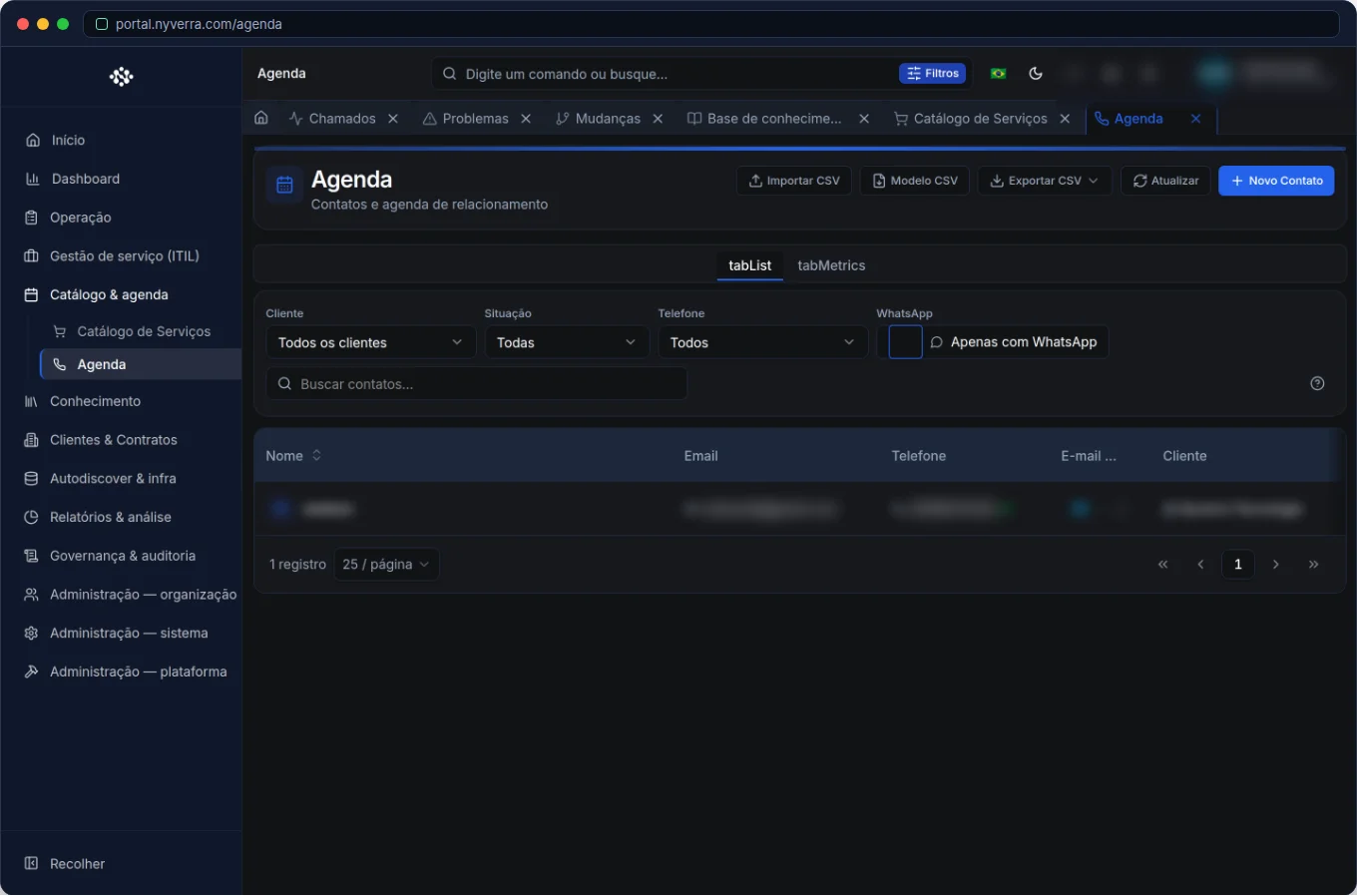 Module interface in the Nyverra ITSM Portal.
What the Agenda Is (and Isn't)
The Agenda is the registry of contacts and organizations related to service interactions. It is not the list of system users (that is in Users) nor the commercial client registry (that is in Clients) — it is the layer of contact people for communication.
| Area | What it stores |
|---|---|
| Users | Who logs into the system |
| Clients | The organization being served (multi-tenant) |
| Agenda | Contact people and companies, with communication channels |
What a Contact Carries
- Identification: name, title, organization.
- Channels: phone, mobile, and email.
- Client link: which organization the contact belongs to.
- Notes: how and when to prefer contact, restrictions, hours.
This link is what allows, in the ticket, selecting the correct requester — a system user or a registered contact — and inheriting the client context.
Who Uses It
| Profile | Typical use |
|---|---|
| Operator / service desk | Locate and reach the contact during service |
| Backoffice / admin | Keep contacts up to date |
| WhatsApp service | Verify the number and open a conversation from the contact |
How to Use in the Service Flow
- Register the contact with name, organization, and channels — avoid duplicates.
- Link to the correct client to inherit scope and SLA.
- In the ticket, select the requester from the Agenda (user or contact).
- Use direct actions: call (tel:) and send email (mailto:) from the contact.
- Record the follow-up: note in the timeline what was handled by phone/email — the external channel is also part of the ticket history.
WhatsApp Integration
When the WhatsApp module is active, the Agenda gains extra usefulness: it is possible to verify if the number is on WhatsApp and open the conversation from the contact. Thus, an operator who receives a request by phone can migrate the conversation to the official messaging channel without losing the client link.
Business Rules
| Rule | Explanation |
|---|---|
| Scope per client | A contact belongs to an organization; this defines visibility and SLA. |
| No duplicates | Search before creating; a duplicate contact causes confusion in service. |
| Privacy | Contact data are PII — handle according to LGPD and restrict access when necessary. |
Best Practices
- Standardize registration: full name, role, organization, preferred channel.
- Keep data alive — an outdated contact is worse than a missing one.
- Always link to the correct client; it facilitates SLA, reports, and communication.
- Record every external interaction (phone/email) in the timeline, so the trail is complete.
Common Mistakes
| Situation | What to do |
|---|---|
| Contact without a linked client | Link to the organization to inherit scope and SLA. |
| Two people look the same | Search by email/phone before creating a new contact. |
| Communication outside the system | Bring the follow-up into the timeline; the ticket history must be single. |
Frequently Asked Questions
Is the Agenda the same as Users?
No. Users access the system; the Agenda gathers contact people, who may or may not have login.
Can a contact be in multiple clients?
The link is with the organization; if the person serves several, register the correct links per client.
Can I talk to the contact through the portal?
The phone/email actions launch the device apps; WhatsApp integrates the official conversation.
Automate via API
Contacts are exposed via API (/api/contatos), allowing synchronization of the agenda with other sources (CRM, directory). Reference at developer.nyverra.com.
Use Cases: the agenda in service
1. Incident that requires a specific contact. A client's system goes down; the technician needs to talk to the IT manager of that company, not just anyone. The Agenda delivers the correct contact, with phone and email, linked to the client — and the technician reaches out in seconds.
2. Documented phone communication. The resolution came via a call. The operator records the follow-up in the timeline, keeping the ticket history complete even when part of the conversation was external.
3. Migration to WhatsApp. The contact called; the conversation continues better by message. Through integration, the operator verifies the number and opens the official conversation without losing the client link.
4. Informed stakeholder. The client manager must follow a critical incident — the Agenda identifies who it is and how to keep them informed.
Data Hygiene: What Separates a Useful Agenda from a Contact Graveyard
A poorly maintained agenda is worse than none, because it generates false confidence. Some routines make a difference:
- Search before creating by email and phone, to avoid duplicates.
- Define a primary contact per client — in a crisis, you know who to turn to first.
- Record contact preferences (hours, channel) in the notes field.
- Periodically review contacts of active clients; remove/update inactive ones.
- Link to the correct client to inherit scope and SLA.
Privacy and LGPD
A contact agenda is, by nature, a repository of PII (names, phones, emails). Handle it with care: restrict access as needed, avoid unnecessary exports, and have a retention policy. The goal is to facilitate communication — not to create a data risk.
Agenda Hygiene Checklist
- Search by email/phone before creating a contact.
- Define the primary contact for each client.
- Standardize the format (full name, role, organization).
- Record contact preferences (channel, hours) in the notes.
- Periodically review contacts of active clients.
- Restrict access and avoid unnecessary exports (LGPD).
Additional Frequently Asked Questions
What is the difference between user and contact?
The user logs into the system; the contact is a reference person for communication, who may or may not have access.
Does the agenda integrate with WhatsApp?
Yes, when the module is active: you can verify the number and open the conversation from the contact.
How to handle contacts who change companies?
Update the link with the correct client; old history remains in previous tickets.
Conclusion
The Agenda is the bridge between service and people. With well-maintained contacts linked to the client, the Nyverra ITSM Portal reduces time spent looking for whom to call and ensures communication is part of the history of every ticket.
Keep reading
Read also

StorCLI - Complete Cheat Sheet
StorCLI is the official and modern tool for managing Broadcom/LSI RAID controllers. This guide covers essential commands, syntax and use cases.
12 min de leitura Portal ITSM
Business Services in Nyverra Portal: Translating IT into Business
The business doesn't feel a server go down — it feels email stop. The Business Services (Service Mapping) module of Nyverra ITSM Portal connects services like Email, ERP or PACS to CMDB assets, revealing the real impact of each failure.
5 min de leitura Segurança
RPO vs RTO: How to Define Before Buying Backup (and Why Most Companies Get It Wrong)
Most companies buy backup asking the wrong question: "how much does it cost?". The right question is: how much data can I lose (RPO) and how long can I be down (RTO). Discover how to define these numbers per system and avoid purchasing protection based on price, not on real need.
9 min de leitura
Comments
No comments yet
Be the first to share your thoughts on this article.


Leave a comment